
 By Thomas Cohen, founder of Maestro
How to choose job management software for a trade business
Keep, extend or replace your software using one realistic job: an accepted quote, a change, a phone photo and the return to the office. A sheet to compare tasks, costs and exports.
The accepted quote is in your software, the installation date is in a spreadsheet and the latest site photo is in a message thread. To choose management software for a trade business, start with what gets lost between those three places. Keeping your current tools, adding a small extension or changing systems can all make sense, depending on the problem you actually face.
This guide follows a fictional job: Hugo, a joiner, is installing a fitted cupboard for an invented customer. Anaïs prepares the paperwork in the office and Mehdi handles installation. The quote has been accepted, but a change requested on site needs to reach the office with a photo and the right progress status. All people, documents and trial results below are fictional.
1. Describe the difficulty before looking for construction software
Hugo knows how to prepare a quote. What he lacks is certainty that Mehdi leaves with the right version and that Anaïs hears about changes afterwards. Buying more invoicing features would not necessarily solve that difficulty. The immediate need is to pass on the job information and decisions reliably.
Observe a representative working day and note when someone copies information, searches or calls back. For each situation, write down the information needed, who has it and what happens without it. “Our organisation is complicated” becomes “Anaïs calls Mehdi to find out whether the cupboard is finished before preparing the next step”.
Choose three handovers to check: prepare the right job file, communicate a change and find a reliable status afterwards. Also record what already works. A change that improves scheduling but makes quotes harder may simply move the difficulty to someone else.
2. Keep, extend or replace your current tool
Start by checking the settings and features included in your plan. Information in the wrong place, missing permissions or an unfamiliar feature do not necessarily justify replacing the software. Ask your contact to perform your task using your fictional examples, instead of showing only their favourite screens.
Try ready-made software first when it covers your everyday tasks. You will often see the term SaaS: software delivered as a remotely accessible service, usually through a subscription. Account numbers, available help and optional features vary by plan; ask exactly what you will be able to use.
An extension may be enough if quoting works well and only one handover is missing. For Hugo, this could be a job file populated from accepted quotes. Check how the address, quote reference and changes arrive. An advertised connection does not prove that all these details travel in both directions.
Custom software becomes an option when an important rule remains poorly covered and someone can build and maintain the extension. Start by asking for a limited trial. For a wider replacement, the guide to rebuilding business software helps examine what you will need to preserve and transfer.
3. Separate essentials from useful extras
Your requirements should not repeat the supplier’s entire catalogue. An essential feature lets someone complete a task without an unacceptable mistake. An extra improves convenience or supports a less frequent need. The distinction should come from the people doing the work, not just the person buying the software.
For this job, the team chooses three essentials: open the right version of the job file, attach a photo to the correct cupboard installation and flag a change that needs attention. Schedule colours and automatically formatted reports can wait. A feature does not become a priority because it looks impressive in a demonstration.
- Essential: the situation, expected result and person who will check it.
- Optional: the desired benefit and the task that remains possible without it.
- Out of scope: what you are not trying to change in the first trial.
- Unknown: the question, contact and answer needed before deciding.
Specify the devices used and the people allowed access. Does Anaïs need to edit every job? Should Mehdi see other sites? Can someone covering an absence use their own account? These needs can affect permissions and price, even in a three-person business.
4. In the office: start with the accepted quote
Prepare the same fictional file for every solution: an invented customer, a cupboard, a test address and a quote marked as accepted. Anaïs adds an installation date and passes the file to Mehdi. Check that he finds the necessary details without calling the office or opening several conflicting documents.
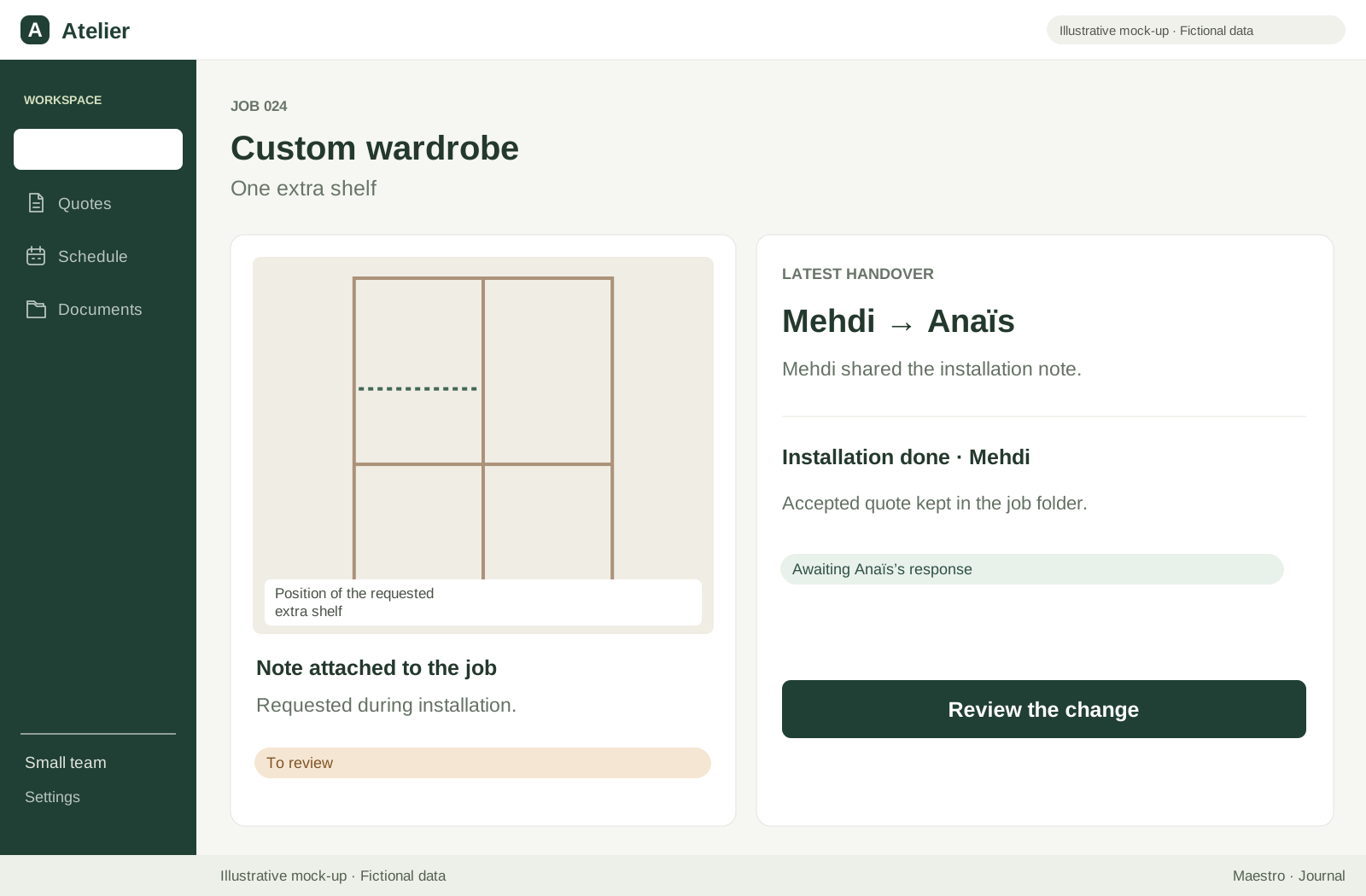
Then change just one thing: the customer asks for an extra shelf. The test should distinguish the accepted quote from the change awaiting review. Ask how the software retains the previous version, presents the request and shows who must decide before the planned work changes.
Do not approve this step simply because another line appears. Anaïs needs to find the original contents, the new request and its status: to review, accepted or declined, according to the agreed process. Define your commercial procedure with the appropriate people; this test concerns information flow, rather than legal requirements for quotes.
If you keep two tools, also change the installation date after the first transfer. Where does the new date appear? Is the old one still visible anywhere? Record the delay you observe and the actions needed. A connection that works when a record is created may handle later corrections differently.
5. On site: try the phone and the connection
Run the demonstration on the phone that will actually be used, with an account matching Mehdi’s role. He needs to find the job, read the instructions and add a test photo. Watch the actions: does reading require zooming, is the file easy to find and is the upload result clear?
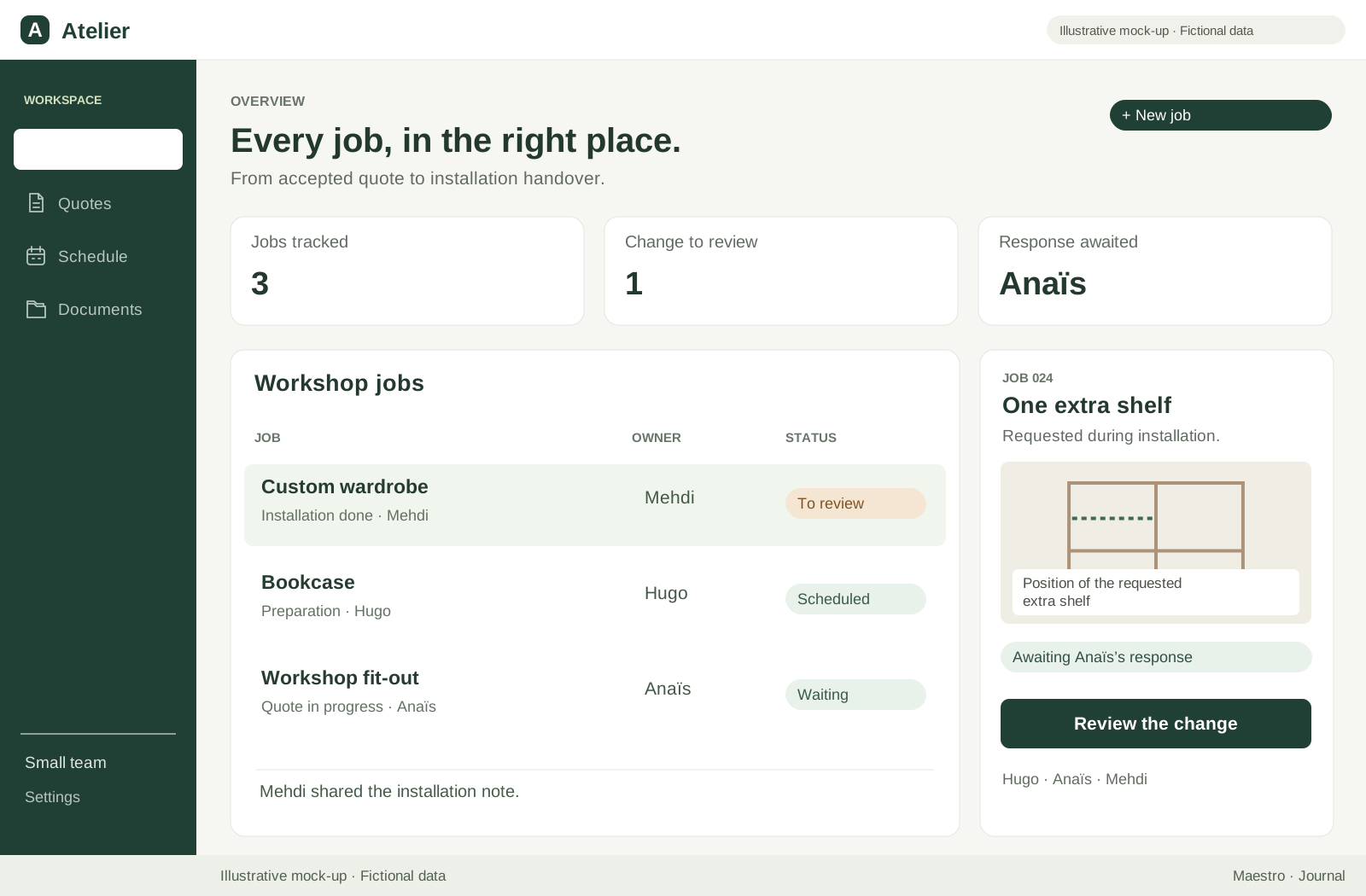
In our example, the photo shows where the extra shelf is requested. It needs to belong to the correct job and include a short explanation. An image in a general gallery is not enough if Anaïs has to guess what it means. For the trial, photograph a neutral object without people, real addresses or customer documents.
Next, test a connection interruption using only this fictional material. Open the file while connected, disconnect, attempt the planned action and reconnect. Check the result from the office. Some solutions may queue an action; others may refuse it. What matters is that nobody believes a photo was sent when it was not.
Also leave and reopen the task. Is the photo present exactly once? Do the instructions still mean the right thing? Note the limitations your work can accept and those that would require a fallback procedure. This test concerns the finished software being evaluated; it does not describe a mobile or offline capability of Maestro.
6. Back in the office: find the right job status
Mehdi marks the installation as completed, but the extra shelf still needs review. A single “Done” button could hide that detail. The team needs to decide what each status means: visit completed, change pending, file to check or work fully closed. The words should help Anaïs choose the next action.
Ask someone who did not watch the demonstration to open the file. Can they find the photo, explain what changed and identify who is waiting for an answer? If the supplier has to tell the story for them, the file does not yet provide all the information you expected.
Next, check a correction: Mehdi selected a status too early and needs to undo it. Anaïs must be able to find the corrected information without losing a useful decision. For shared use, also try two changes close together on a fictional record and ask how conflicting edits are handled.
Finally, retrieve the materials needed for the next step: a job document, invoicing data or information for the accountant, depending on your process. Ask the recipient to open the result. An export listed in a menu is not yet a usable handover.
7. Complete the same comparison sheet for each solution
Open a note and copy the lines below once for each product. Write down answers during the trial, including limitations and actions required. Keep “reported by the supplier” separate from “tested by Anaïs”. An unknown answer is neither a yes nor a zero.
- Solution, plan and trial date: …
- Team and devices involved: …
- Accepted job and later change: observed result, remaining difficulty and person approving it.
- Photo and status from the phone: connected result, offline result and recovery after reconnection.
- Back in the office: information found and any re-entry still required.
- Data recovery: files actually opened, missing attachments and help required.
- Cost: first year, following year, options and unknowns to have quoted.
Here is a fictional entry for “solution A”, unrelated to any brand: “Two office accounts, one site account; accepted quote found; photo visible after reconnection; pending upload clearly shown; date changes must be copied manually; documents exported, photo-to-job links still to confirm; written pricing needed.”
In that example, the photo passed the trial, but the date change remains manual. Hugo must decide whether that duplication is acceptable or repeats the original problem. Adding up ticks should not let several small successes hide an essential requirement that remains unmet.
8. Compare the cost for the same team over a year
Ask for a written proposal covering the accounts, features and devices in your sheet. Clarify the conditions for adding a person, required options and any commitment. An entry price for one user does not let you compare the combined work of Anaïs, Hugo and Mehdi.
Separate the first year from later years. Setup, data preparation and training may be one-off expenses; subscriptions, some connections and assistance may recur. Also ask what happens at the end of the trial and how to retrieve your materials before deciding whether to continue.
- Initial cost: preparation, setup, data transfer and training.
- Recurring cost: accounts, options, necessary services and planned maintenance.
- Team time: trials, explaining the tool to colleagues and work still done manually.
- Exit cost: export, any assistance and getting things running elsewhere.
For custom software, add construction, fixes, any hosting and the person who will maintain the result. AI usage is a separate item if you build with agents. Our budget guide helps frame these questions without inventing a universal price. The five-year SaaS versus custom calculation then extends the comparison beyond the first year.
9. Check recovery before changing systems
Ask for a small trial export containing your fictional customer, accepted quote, change, photo and job statuses. Open the resulting files. A PDF lets you read a document; it does not guarantee that every piece of information can be transferred automatically into another application.
Check the connections between those elements. A photo in a folder can be difficult to use if nothing identifies its job. Compare dates, references and amounts where the trial includes them. Ask which elements are missing, which formats are available and whether recovering them requires assistance.
Before a real switch, keep a protected copy and agree on a single place for new entries. Have the transfer checked against representative files before retiring the old system. The data transfer guide explains this preparation; you do not need a full migration just to compare two interfaces at the first meeting.
10. Prepare your next trial in ten minutes
Create a note with four headings: the main difficulty, the fictional job, three essential results and unanswered questions. Add the devices people use. You do not need a long document to request a first demonstration that resembles your working day.
For Hugo, it could read: “Pass a reliable file between office and installation. Trial: accepted cupboard quote, shelf requested, photo, return to office. Check: correct version, visible change, understood status. Questions: connection loss, date change and attachment recovery.” Those few lines form a trial agenda.
Send that agenda to your contact before the demonstration and reserve time to try the software yourself. Afterwards, choose the next decision: keep the tool, check a connection, try another solution or request a quote for an extension. Comparison becomes useful when it leads to a limited, verifiable action.
11. Where Maestro can fit
Maestro helps you have an application built from a Mac: you describe the need, review the plan and check the result. It is not ready-made quoting or site management software. It can help prepare the specific extension missing after your trials, using a plain-language application brief.
That extension’s capabilities still need to be built and checked, especially phone access, shared information and behaviour without a connection. Keeping the project on your Mac does not guarantee that AI exchanges stay offline or that the finished application automatically works on every device your team uses.
Maestro is free during its invitation-only beta, available for macOS 13 and later; AI usage and any operating costs of the created application are separate. Start with the missing handover: for Hugo, finding the photo, requested change and job status back in the office. That need remains your criterion, whichever tool you choose.
Compare alternatives to Lovable: pricing, code and local workflows